Providers in Cue
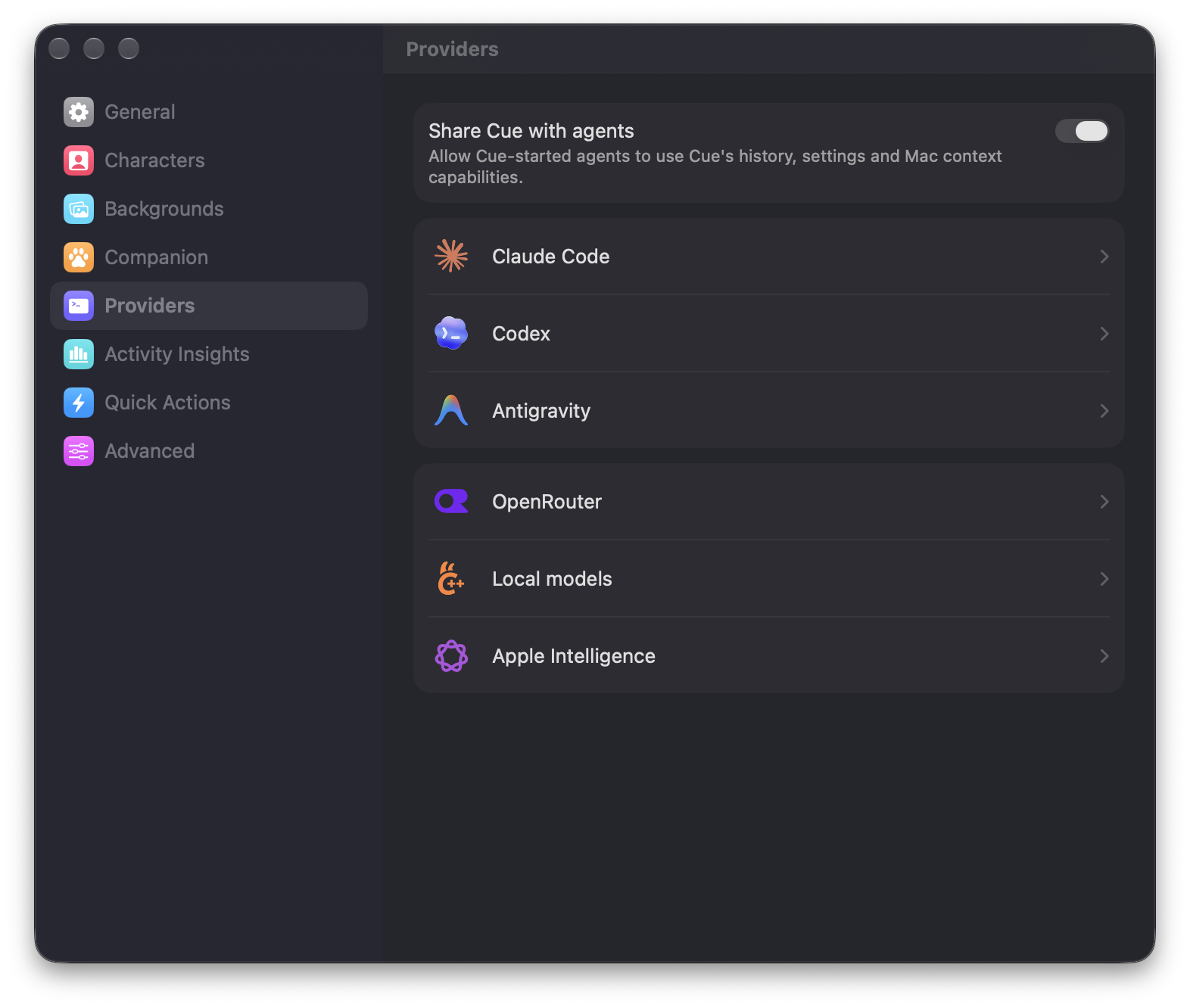
Choose an installed agent or connect a hosted or local model. Configure it in Settings → Providers, then select it from a chat’s agent menu.
Choose a provider
Cue groups providers by how they run. Choose the agent or model connection that matches your setup.
Installed agents
These agents run their own CLI processes and handle their own sign-in.
 Claude Code. Runs the installed
 claudecommand and uses its sign-in. Codex. Runs the installed
 codexcommand and uses its sign-in. Antigravity. Runs the installed
 agycommand. Cue offers Full and Edit Files access modes.
Models through Cue
Cue runs the agent loop with the selected model.
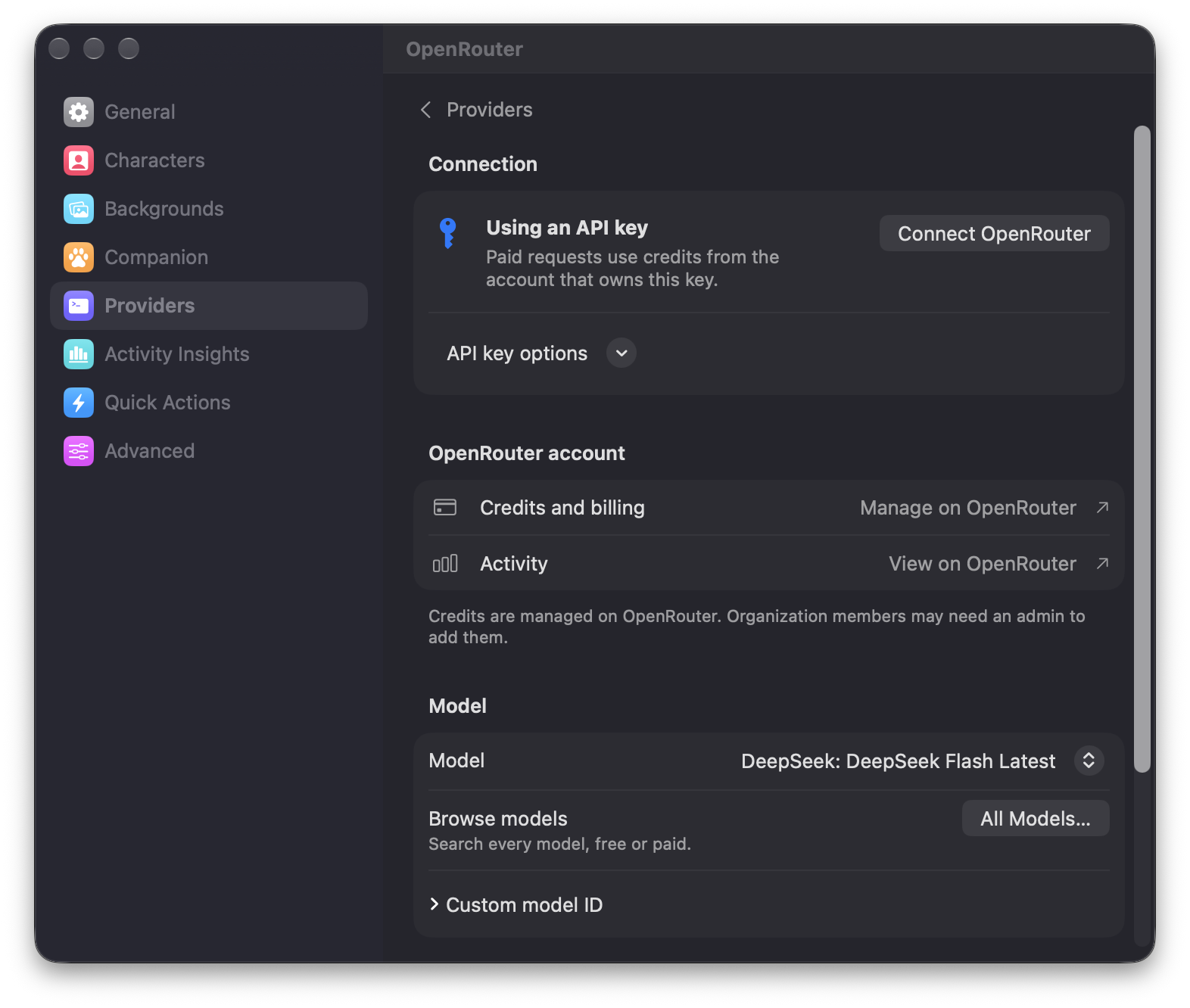
 OpenRouter. Connect an account or API key to browse hosted models.
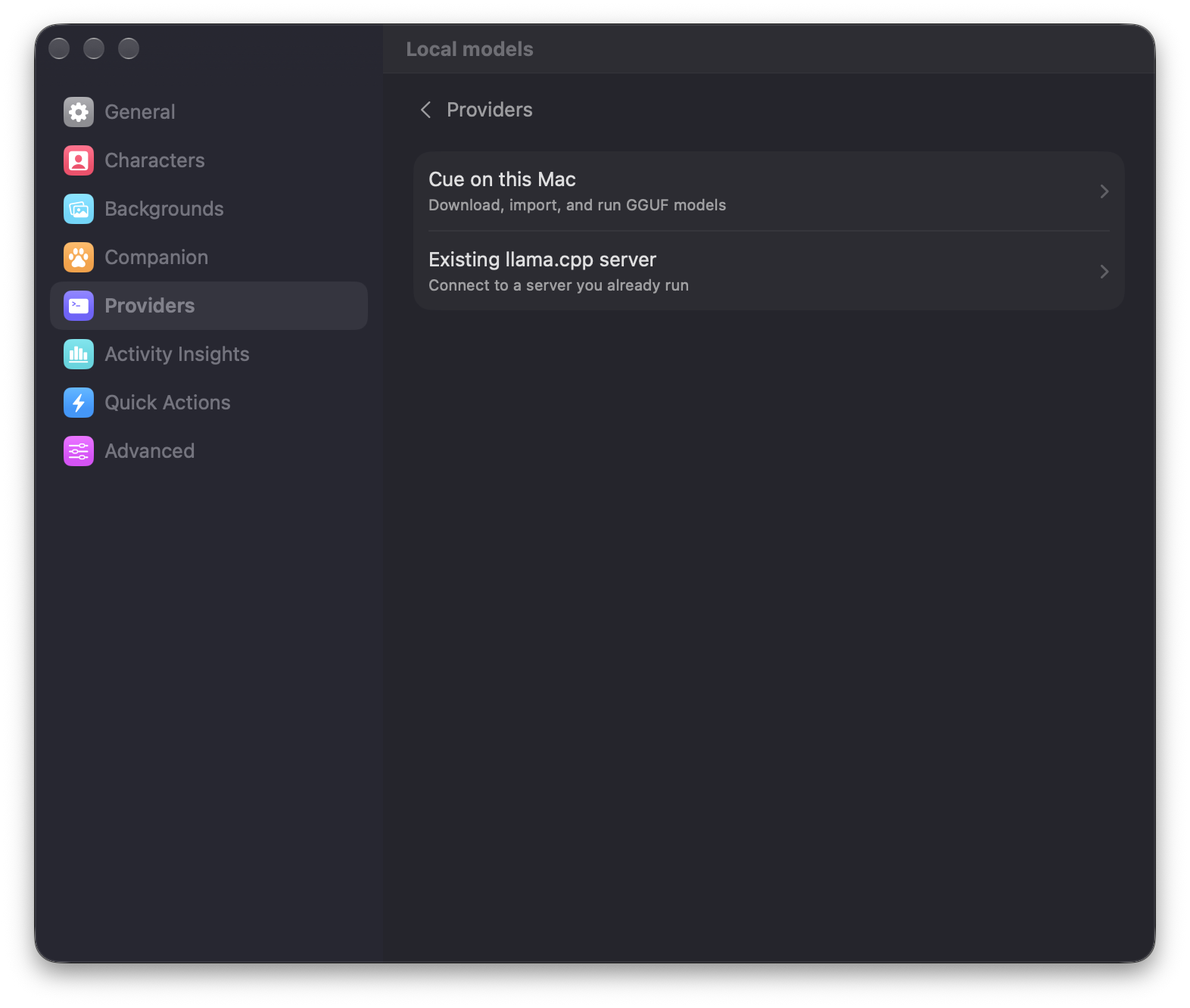
 Local models. Download or import a GGUF model, or use an existing llama.cpp server.
- Apple Intelligence. Uses Apple’s on-device model when it is available on this Mac.
Set up a provider
Open Settings → Providers and select the provider’s row for its connection and model controls.
Claude Code, Codex, or Antigravity
Install and sign in through the agent’s own CLI. Select it from the agent menu in Cue. Open its Providers row to adjust any model, thinking, or access options Cue offers for that agent.
OpenRouter
- Open Settings → Providers → OpenRouter. Select Connect OpenRouter for the browser connection, or use API key options.
- In Model, select a model or choose All Models… to browse. Paid requests use credits on the connected OpenRouter account.
Local models
- Open Settings → Providers → Local models.
- Choose Cue on this Mac to download or import a GGUF model. Cue starts its bundled llama.cpp server for that model.
- Choose Existing llama.cpp server if you already operate one. Enter its connection details and use Save & Check.
Apple Intelligence
Enable Apple Intelligence in macOS System Settings on an eligible Mac and wait for its model to be ready. Then select Apple Intelligence in Cue.